17.0 - Last modified on 2026-02-17 Revised by Pamela Miller
16.0 - Last modified on 2025-12-09 Revised by Sara Grady
15.0 - Last modified on 2024-07-29 Revised by Denise Moser
14.0 - Last modified on 2024-07-29 Revised by Denise Moser
13.0 - Last modified on 2024-07-24 Revised by Randy Yoho
12.0 - Last modified on 2023-12-12 Revised by Denise Moser
11.0 - Last modified on 2021-12-14 Revised by Denise Moser
10.0 - Last modified on 2021-10-06 Revised by Denise Moser
9.0 - Last modified on 2020-12-14 Revised by Denise Moser
8.0 - Last modified on 2020-08-21 Revised by Denise Moser
7.0 - Last modified on 2019-12-19 Revised by Ben Allen
6.0 - Last modified on 2019-10-29 Revised by Denise Moser
5.0 - Last modified on 2019-08-01 Revised by Pamela Miller
4.0 - Last modified on 2019-08-01 Revised by Pamela Miller
3.0 - Last modified on 2019-07-31 Revised by Denise Moser
2.0 - Last modified on 2019-07-10 Revised by Denise Moser
1.0 - Created on 2019-07-09 Authored by Ben Allen
Question:
How do I add or change what I've enrolled in Okta?
Answer:
To check what you've enrolled in Okta:
- Visit okta.nd.edu and sign in. You may be prompted to respond to two-step login.
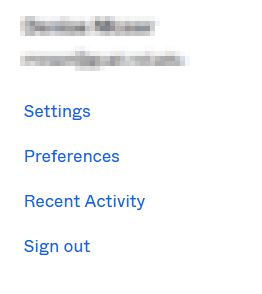
- Click your name in the upper right corner of the screen, then click Settings
- Locate the Security Methods section
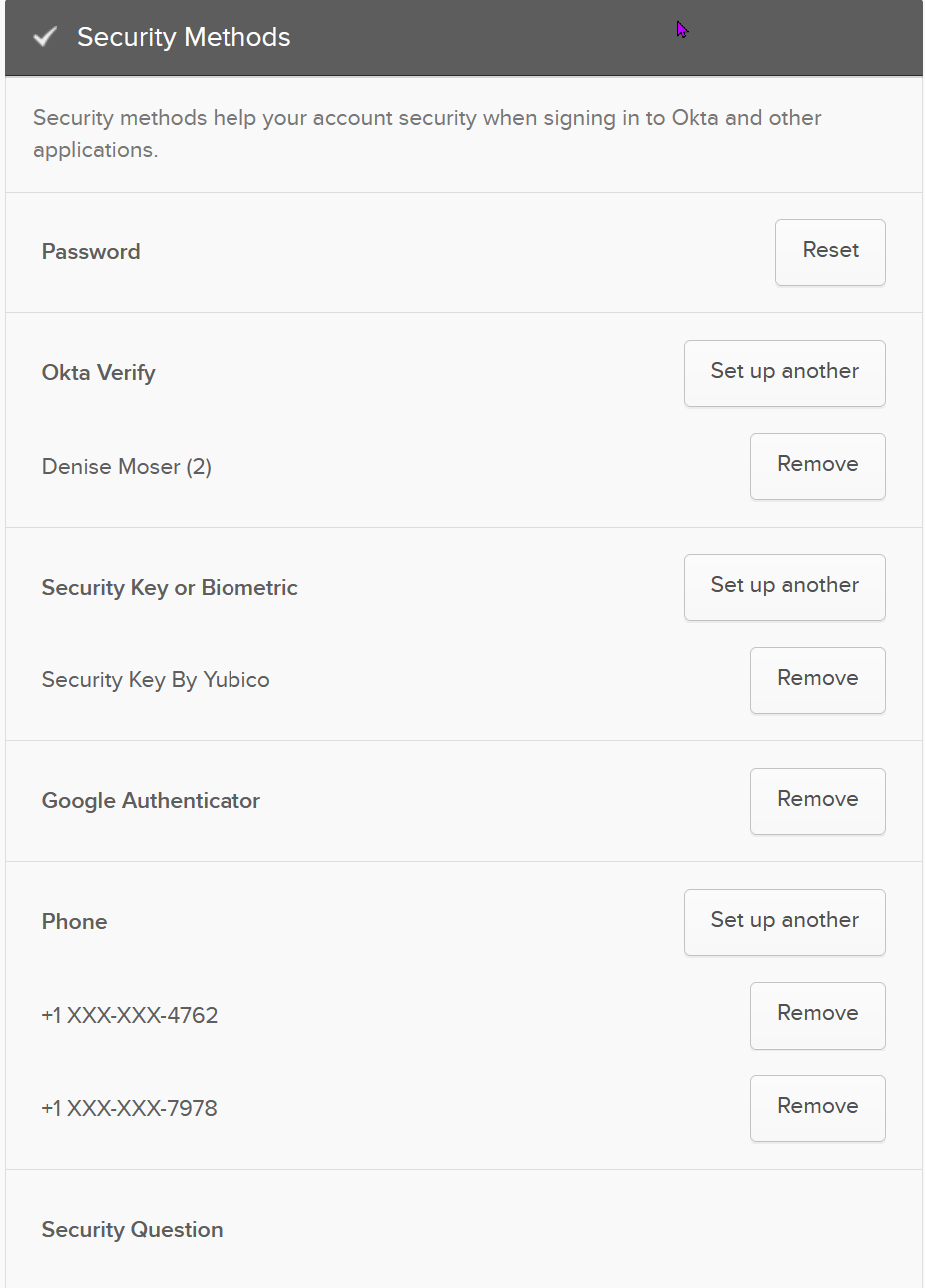
- Here you can view what you have currently enrolled. To configure a new device, click Set up or Set up another
- To reconfigure a previous device, click Remove, then you should be able to click Set up.
- You can find specific instructions for each type of device below.
- When updating security methods you may be prompted to enter your password and provide two-step verification.