Panopto allows downloading under certain conditions to support offline viewing. For example, for students with limited internet access or who may be traveling. This article explains:
- Who can download content
- How to enable downloads
- What the downloadable files look like
Mobile App: Offline Viewing
Students can cache videos for offline viewing using the Panopto mobile apps on iOS or Android. These videos are stored securely on the device and cannot be transferred to other locations or downloaded to computers.
To manage availability (e.g., limit access during exams), see: How to Publish Videos Using the Availability Workflow.
For more info, see: How to Use the Panopto Mobile App
Who Can Download Content
How Do I Allow Downloads
What Do the Files Look Like
Single Source (e.g., screen only or webcam only)
Multiple Sources (e.g., webcam + slides)
Zoom Cloud Recordings
How Do You Download the Files
Who Can Download Content
- Creators (e.g., instructors) can download videos.
- Viewers (e.g., students) cannot download unless the instructor explicitly enables download permissions.
Note: The Canvas "Student View" will not show accurate permissions for Panopto.
How Do I Allow Downloads
- Panopto generates an MP4 file that can be downloaded and viewed offline.
- Instructors can enable downloads at the folder level or individual video level.
- The permission applies to all viewers once enabled. Individual exceptions are not supported.
Enable Downloads: How to Enable Podcast Downloads
Student instructions (once enabled): How to Download Video or Audio Streams as MP4s
What Do the Files Look Like
Single Source (e.g., screen only or webcam only)
If you only have a single source in your video (just your Webcam or your computer screen), the file Panopto creates is almost exactly what students would see when watching the session on-line.
or
Multiple Sources (e.g., webcam + slides)
For most recordings with more than one source, the downloadable file Panopto creates is a PiP (Picture-in-Picture) view. The video is fairly small and covers the bottom right of the content.
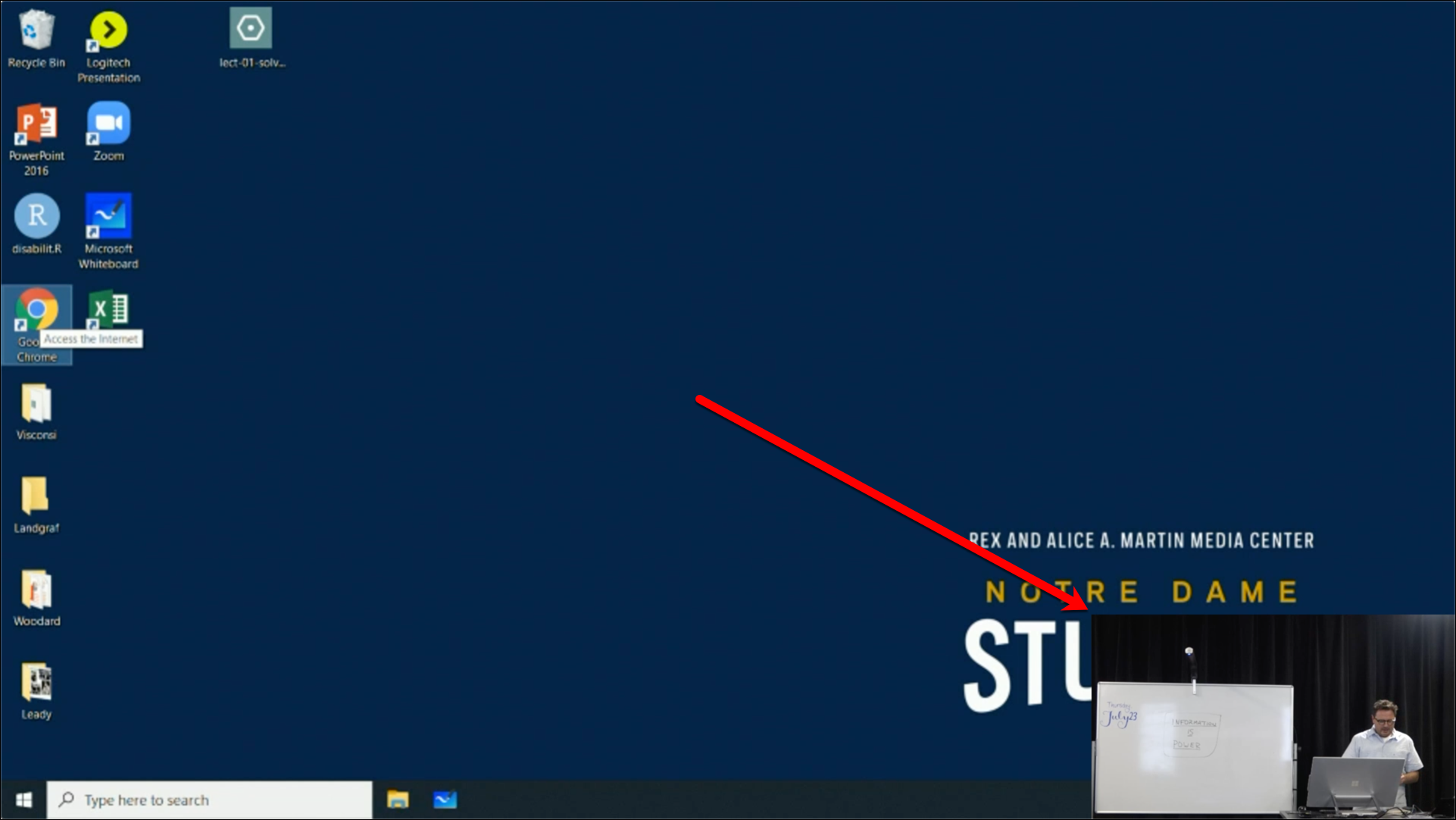
Zoom Cloud Recordings
For Zoom cloud recordings which have been automatically imported, Panopto creates a downloadable file in Side by Side view. The content is somewhat smaller and therefore may be harder to see, but the video is somewhat larger and does not cover any of the content
You can change the format which is downloaded by following the instructions here, How to Change the Format and Preview the Podcast Version of Videos.
Note: Individual video/audio stream files cannot be downloaded separately for editing.
How to Download a Video from Panopto
As a reminder, only Creators (e.g., instructors) can download videos. Viewers (e.g., students) cannot download unless the instructor explicitly enables download permissions. See "How Do I Allow Downloads" above for more information.
To download the mp4 file from Panopto:
- Log in to panopto.nd.edu and sign in with your Notre Dame NetID and Password.
- Locate the video you would like to download.
- Click on the title of the video to open it.
- In the top-right corner of the player, click the 3 vertical dots and then Download podcast.