20.0 - Last modified on 2026-04-24 Revised by Chaz Barbour
19.0 - Last modified on 2026-04-15 Revised by Chaz Barbour
18.0 - Last modified on 2026-04-09 Revised by Chaz Barbour
17.0 - Last modified on 2026-01-05 Revised by Chaz Barbour
16.0 - Last modified on 2026-01-05 Revised by Chaz Barbour
15.0 - Last modified on 2024-10-04 Revised by Martin Klubeck
14.0 - Last modified on 2022-02-04 Revised by Denise Moser
13.0 - Last modified on 2022-02-04 Revised by Justin Howell
12.0 - Last modified on 2021-07-30 Revised by Matthew McGuire
11.0 - Last modified on 2021-07-13 Revised by Denise Moser
10.0 - Last modified on 2020-07-13 Revised by Kael Kanczuzewski
9.0 - Last modified on 2020-07-10 Revised by Kael Kanczuzewski
8.0 - Last modified on 2020-07-07 Revised by Jean Pawlak
7.0 - Last modified on 2020-07-07 Revised by Michelle Johnson
6.0 - Last modified on 2020-06-16 Revised by Matthew McGuire
5.0 - Last modified on 2020-06-04 Revised by Justin Howell
4.0 - Last modified on 2020-05-26 Revised by Michael Ball
1.0 - Created on 2016-09-08 Authored by Michael Ball
Overview
Zoom updates add new features, fix problems, and improve security. On university-managed computers, Zoom usually updates automatically. You can still check for updates manually when needed.
Updating Zoom will not change your meetings, settings, or account information.
For more information, see Zoom’s guide: Updating Zoom to the latest version
Before You Begin
- Manual updates usually take less than 15 minutes to download and install.
- Allow extra time if you have a meeting scheduled soon.
- If Zoom prompts you to sign in, select Sign in with SSO.
Update Zoom
-
Open the Zoom application.
-
If prompted to sign in, select Sign in with SSO.
-
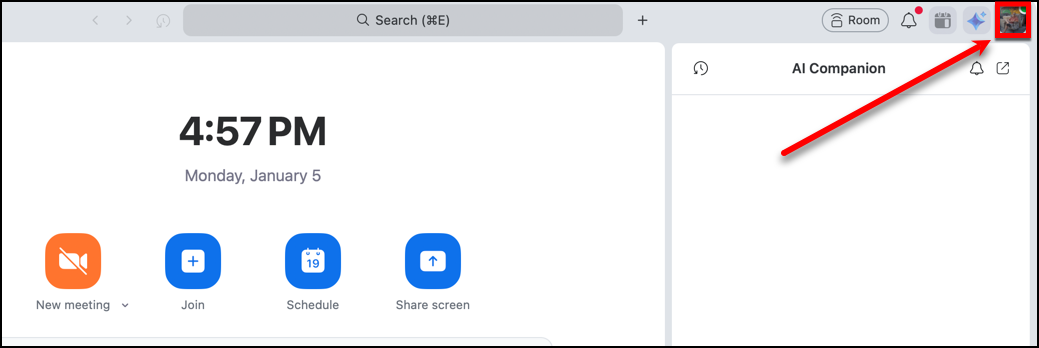
Click your profile picture in the top-right corner.
-
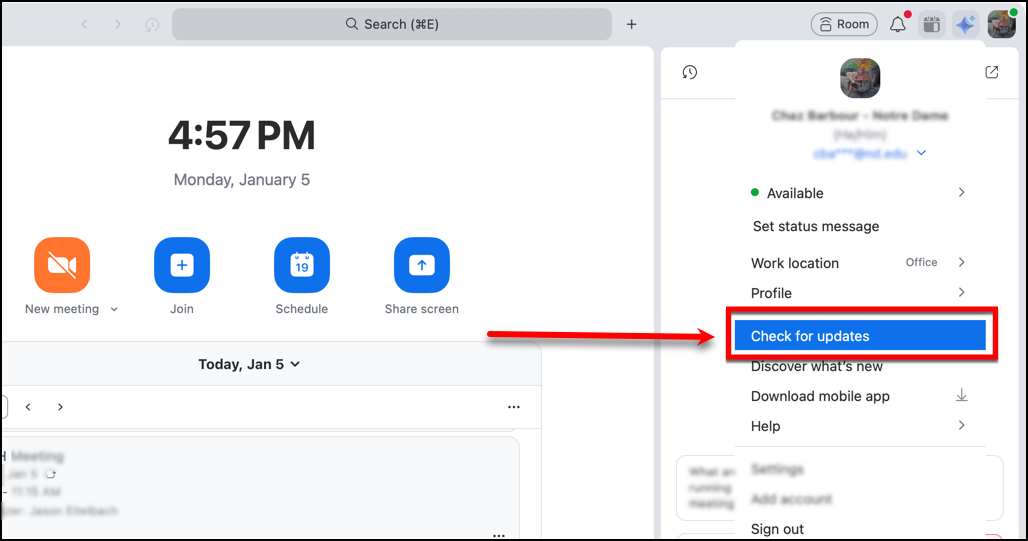
Select Check for Updates.
-
If an update is available, click Update.
-
Wait while Zoom downloads and installs the update.
-
Let Zoom restart when the update finishes.