20.0 - Last modified on 2026-04-24 Revised by Chaz Barbour
19.0 - Last modified on 2026-04-15 Revised by Chaz Barbour
18.0 - Last modified on 2026-04-09 Revised by Chaz Barbour
17.0 - Last modified on 2026-01-05 Revised by Chaz Barbour
16.0 - Last modified on 2026-01-05 Revised by Chaz Barbour
15.0 - Last modified on 2024-10-04 Revised by Martin Klubeck
14.0 - Last modified on 2022-02-04 Revised by Denise Moser
13.0 - Last modified on 2022-02-04 Revised by Justin Howell
12.0 - Last modified on 2021-07-30 Revised by Matthew McGuire
11.0 - Last modified on 2021-07-13 Revised by Denise Moser
10.0 - Last modified on 2020-07-13 Revised by Kael Kanczuzewski
9.0 - Last modified on 2020-07-10 Revised by Kael Kanczuzewski
8.0 - Last modified on 2020-07-07 Revised by Jean Pawlak
7.0 - Last modified on 2020-07-07 Revised by Michelle Johnson
6.0 - Last modified on 2020-06-16 Revised by Matthew McGuire
5.0 - Last modified on 2020-06-04 Revised by Justin Howell
4.0 - Last modified on 2020-05-26 Revised by Michael Ball
1.0 - Created on 2016-09-08 Authored by Michael Ball
How to Update Zoom on Your Computer
Overview
Zoom updates add features, fix problems, and improve security. University-managed computers update Zoom automatically, but you can still check for updates yourself when needed. Your meetings, settings, and account information will remain unchanged.
For additional information, see Zoom’s guide: Updating Zoom to the latest version
Before You Begin
- Manual updates typically take less than 15 minutes to download and install.
- Allow extra time if you have a meeting scheduled soon.
- If prompted to sign in during this process, select Sign in with SSO.
Instructions
- Open the Zoom Application
- If prompted to sign in, choose Sign in with SSO.
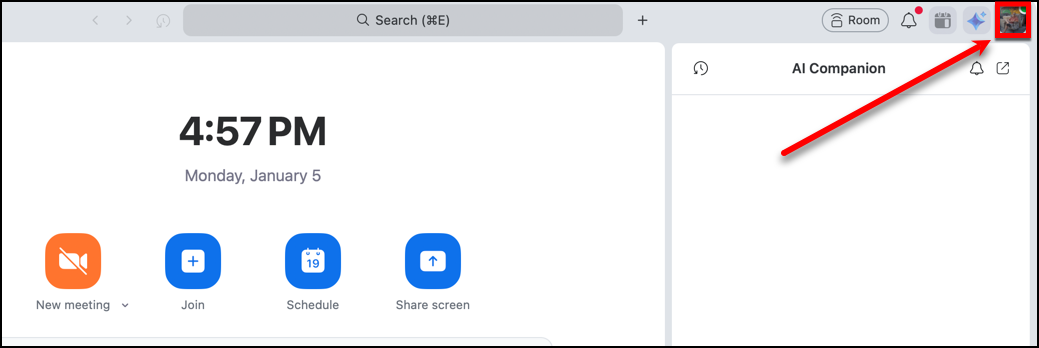
- Click your profile picture in the top-right corner.
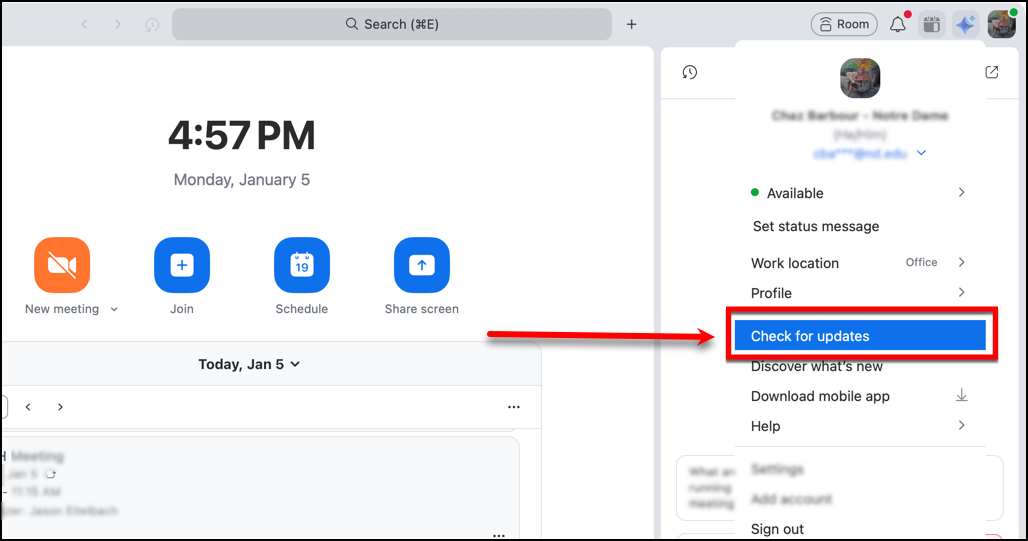
- Select Check for Updates.
- If an update is available, click Update.
- Wait while Zoom downloads and installs the update.
- Let Zoom restart when the update is finished.